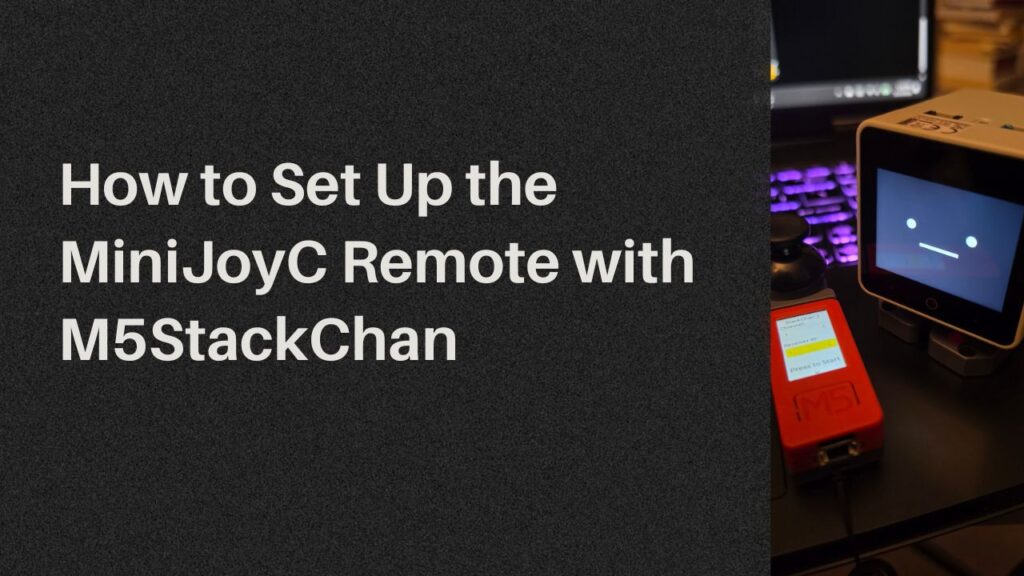
Setting up the MiniJoyC remote for M5StackChan is not difficult, but the first step can be easy to miss. If your remote does not show the channel or receiver ID options, it probably needs the correct firmware installed first. In this guide, I walk through how to set up the M5StickC Plus with the MiniJoyC Hat, burn the StackChan RemoteControl FactoryTest firmware using M5Burner, and match the remote settings to M5StackChan through ESPNOW.REMOTE. This is a beginner-friendly walkthrough for anyone setting up their M5StackChan remote for the first time.
What you need
- M5StackChan
- M5StickC Plus
- MiniJoyC Hat
- USB-C data cable
- Computer
- M5Burner
Step 1: Download M5Burner
Go to the official M5Stack download page and download M5Burner.
On the download page, look under the UiFlow Firmware Burning Tool section. That is where M5Burner is listed.
Step 2: Connect the M5StickC Plus to your computer
Plug the M5StickC Plus into your computer using a USB-C data cable.
Note: If M5Burner does not detect the device, try another cable. Some USB-C cables only charge and do not transfer data.
Step 3: Burn the correct firmware
In M5Burner, the correct firmware is:
StackChan RemoteControl FactoryTest
That is the one you want for the M5StickC Plus remote.
Once it finishes installing, restart the M5StickC Plus and attach it to the MiniJoyC Hat.
Step 4: Set M5StackChan to receiver mode
On M5StackChan, go to:
ESPNOW.REMOTE → Advanced → Receiver
Then select:
-
Wi-Fi Channel
-
Receiver ID
For a first test, you can use:
-
Wi-Fi Channel:
1 -
Receiver ID:
1
M5StackChan’s ESP-NOW remote feature works by making the M5StackChan the receiver and the remote controller the sender.
Step 5: Match the remote settings
On the M5StickC Plus remote screen, select the same:
-
Channel
-
Receiver ID
Use the right button on the StickC Plus to move between fields.
Use the MiniJoyC joystick to increase or decrease the number.
Your remote screen should look something like this:
-
StackChan 🙂
-
Channel:
-
Receiver ID:
-
Press to Start
Step 6: Start controlling M5StackChan
Once the channel and receiver ID match, press to start.
You should be able to control M5StackChan using:
- the MiniJoyC joystick
- the M5StickC Plus IMU / tilt controls
This likely means the StickC Plus is not running the Stack-chan remote controller firmware yet.
To fix it:
- Connect the M5StickC Plus to your computer.
- Open M5Burner.
- Search for StackChan RemoteControl FactoryTest.
- Burn it to the M5StickC Plus.
- Reboot and check the screen again.